bladerunner runs a full Incus daemon in a Debian 13 VM built directly on Apple’s
Virtualization.framework — no Lima, no Colima, no QEMU layer in between.
brew install,
br start, and you’re running
containers and VMs on Apple Silicon. Then
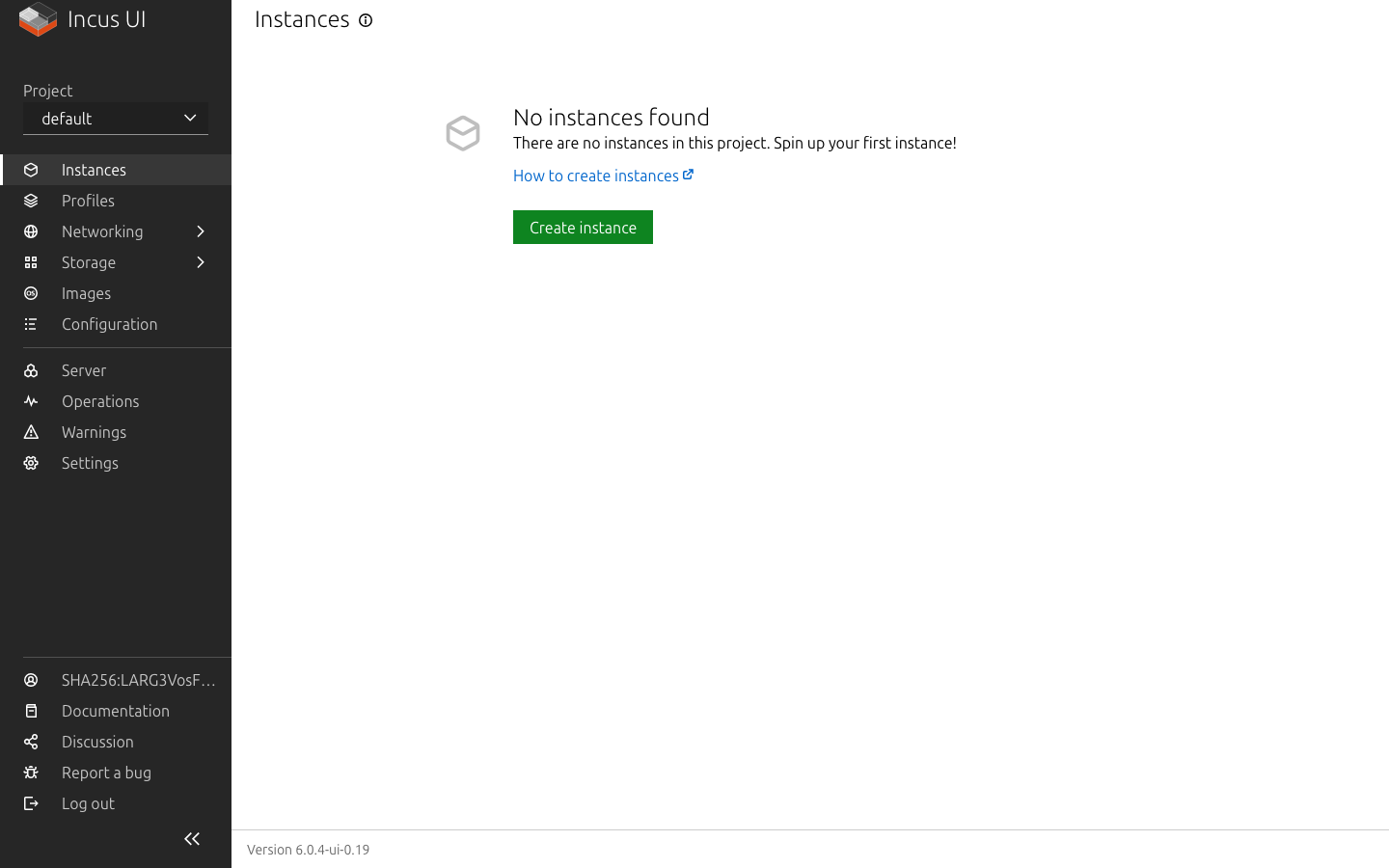
br web opens the Incus dashboard
already signed in with your SSH key.
$ brew install stuffbucket/tap/bladerunner✔ signed with Virtualization entitlement$ br start⠙ fetching pre-baked guest image (once)…⠹ booting Debian 13 (trixie), Incus preinstalled…✔ Incus ready · https://127.0.0.1:18443✔ SSH · 127.0.0.1:6022$ br web→ opening dashboard, signed in with your SSH key ✓
🔒127.0.0.1:18443/ui/
signed in with your SSH key.
The marquee feature
Open the dashboard already logged in.
br web opens the Incus dashboard and
you land already logged in — no password, no client-cert prompt, no OIDC setup. bladerunner
proves possession of the same SSH key you use for
br ssh and hands the browser a
session. (Approving from another terminal?
br web approve works too.)
Built straight on Apple’s Virtualization.framework via Code-Hex/vz — no
nested Lima/Colima orchestration, no QEMU translation overhead. The binary is auto-signed with
the Virtualization entitlement when you install from Homebrew.
Debian 13 guest with Incus already installed
The default is a pre-baked Debian 13 (trixie) image with the Incus daemon baked in, verified
against its published checksum before it boots. First boot configures Incus instead of
installing it, so it runs no apt: about a minute from cold, including the one-time ~1 GB image
download, and seconds once that image is cached.
incus and incus-client ship in trixie main, so
there are no third-party apt repos to trust. If the pre-baked image cannot be fetched or
verified, bladerunner warns and falls back to the stock Debian genericcloud image, where
cloud-init installs Incus on first boot and that boot takes several minutes;
--debian-image selects that fallback path on
purpose. Ubuntu and other cloud images are reachable with
--image-url.
Localhost everything, over vsock
SSH and the Incus HTTPS API are forwarded to localhost through virtio-vsock — SSH on
127.0.0.1:6022, the Incus API and UI on
https://127.0.0.1:18443. No bridge to configure, no firewall holes to
poke.
Save, restore, and auto-start
br save pauses the guest, snapshots its
machine state to disk, and resumes;
br restore brings it right back. Commands
offer to boot the VM when it isn’t running, so you rarely have to think about lifecycle. Nested
virtualization is on by default, so Incus VMs work out of the box.
Optional bridged L2 networking
Want the VM to have a real presence on your network? Run with
--network-mode bridged --bridge-interface en0
for transparent layer-2 networking (requires the additional VM networking entitlement).
A terminal UI that respects your terminal
Live progress for long-running steps, rotating structured logs with stage-level observability,
and a startup report with all your VM, network, and access details — rendered with a clean
charm/lipgloss interface.
From zero
From zero to Incus in five steps.
01
Install.The binary is automatically code-signed with the required Virtualization entitlement during install.
br — zsh
$ brew install stuffbucket/tap/bladerunner
02
Start the VM.The default guest image ships with Incus already installed, so first boot configures it rather than installing it: about a minute on a cold start, and that minute includes the one-time ~1 GB image download. Later starts reuse the cached image and come up in seconds. A startup report is printed and saved to ~/.local/state/bladerunner/startup-report.json.
br — zsh
$ br start
03
Open the web UI — already signed in.Lands you in the Incus dashboard authenticated with your SSH key.
br — zsh
$ br web
04
SSH in.Show connection details, or connect directly on the forwarded port.
br — zsh
$ br ssh# show connection details$ ssh -p 6022 incus@127.0.0.1
05
Snapshot and resume.Pause and snapshot the machine state, then bring it right back.
br — zsh
$ br save# pause, snapshot machine state, resume$ br restore# bring the VM back from saved state
Requirements
Apple Silicon (M1–M4), macOS 13+ (Ventura or later). Save/restore needs macOS 14+. Intel Macs
are not supported.
How it differs
Without the Lima/Colima layer underneath.
bladerunner gives you the core of a colima --runtime incus
setup without the Lima/Colima orchestration layer underneath. Instead of stacking a VM manager on
top of QEMU on top of your Mac, it talks to Apple’s Virtualization.framework directly:
architecture-aware Debian defaults, a pre-baked guest image that already has Incus installed,
and SSH + the Incus API forwarded to localhost over vsock. The result is fewer moving parts, a
faster path to a working Incus, and one extra trick neither tool offers — opening the Incus web
dashboard already authenticated with your SSH key.